
We frame each dispatch around what changed, why it matters, and what to watch next in the cycle.
Why Home File Backup Organization Matters
Organizing home file backups reduces the risk that important information disappears or is impossible to locate when needed. Many households now keep vital records such as tax files, property and medical documents, school work, and family photos only on phones, laptops, or tablets. These files can be lost through hardware failure, theft, accidental deletion, or damage from everyday incidents. When documents are scattered across devices with no clear structure, it becomes hard to see what is safely backed up and what exists in only one vulnerable place.
A basic system for personal data organization, supported by copies in more than one location, helps limit these problems. Sorting files into clear categories, naming folders in a way that everyone at home understands, and deciding which records are most important to protect make it easier to find and confirm key documents. When this structure is combined with a simple backup routine, such as regularly saving essential files to an external drive and a reputable cloud account, important documents and personal memories are more likely to remain accessible over time.
Designing a Practical Digital File Naming System
A practical naming system at home starts with consistency and clarity. Use a simple pattern that works for photos, finances, school documents, and household records so you do not need different rules in every folder. Many people rely on names built from dates, a short description, and a version tag, with the year first to support chronological sorting. Avoid vague labels and choose plain words that anyone in the household could understand later. Keep names short but specific so folder contents are easy to scan and remain clear when you copy files to an external drive or a cloud service.
For reliable personal data organization, define a few standards and follow them whenever you save a file. Decide how to handle spaces and special characters, how to write dates, and how to mark revised versions so older copies can be identified without guesswork. Separate major categories into top-level folders such as finances, legal records, education, and photos so unrelated materials do not mix. When this structure is applied on your computer, external drives, and online storage, backups are easier to manage, and in a recovery situation important documents are quicker to locate because names reflect how you already think about your information.
| Naming Rule | Quick Check Question | Example Pattern | Clarity Level |
|---|---|---|---|
| Use year-first dates | Does the name sort in time order? | 2024-05-10_TaxReturn_v2 | High |
| Keep words simple | Could any adult at home understand it? | 2023-09-01_HouseInsurancePolicy | High |
| Limit special characters | Are there only letters, numbers, basic dashes? | 2023-11-15_SchoolProject_v1 | Medium |
| Include version tags | Can you tell latest from earlier copies? | 2022-07-04_FamilyBudget_v3 | High |
| Match folder categories | Does the name fit its top-level folder? | 2023-12-25_FamilyPhoto_Trip | High |
Folder Structures and Categories for Home Use
A practical home folder structure starts with a few broad areas that reflect daily life, such as Money and Legal, Home and Household, Work and School, Photos and Memories, and Personal Records. Inside these main folders, add subfolders that match what you actually store, for example taxes by year, insurance policies by provider, medical records by family member, or photos grouped by year and event. Clear labels highlight documents that need extra protection, including identification, legal agreements, and financial records, and help backups on external drives or cloud services follow the same layout. When backup locations mirror the structure on your devices, it is easier to avoid missing important files and to locate what you need later, whether you are checking a contract, reviewing a bill, or finding a specific family photo.
Using External Drives for Local Backup
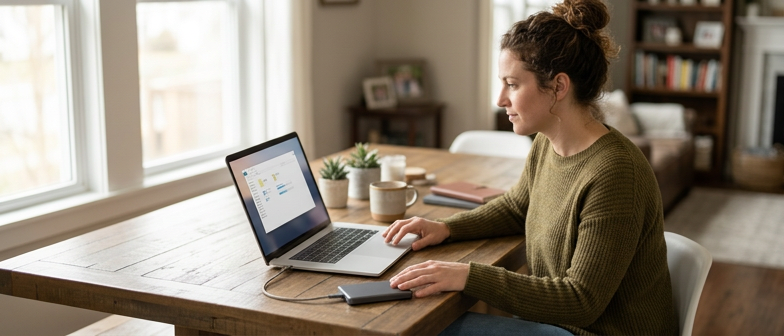
External hard drives and solid-state drives are a practical way to keep a local backup of important home files. Because they are separate from your computer, a failure or software issue on the main device is less likely to erase everything at once. In a basic home backup plan, an external drive usually holds a copy of key folders such as documents, photos, and tax or legal records. This backup should be a second copy that supports, rather than replaces, the data stored on your computer or in other backup locations.
To keep files organized on the drive, it helps to mirror the structure you use on your computer. You can create a top-level folder with the computer name and backup date, then add subfolders for categories like personal documents, family photos, study or work files, and financial or legal records. Within each category, clear names and dates make it easier to find what you need, including when replacing a damaged device or preparing paperwork. Storing each backup in a dated folder also lets you compare older and newer versions without confusion.
Connection habits and basic care affect how long an external drive stays reliable. Many people plug the drive in only during planned backups, then safely eject it and store it in a dry, cool place away from direct sunlight. Avoid moving or dropping the device while in use, and keep cables where they will not be pulled or tripped over. From time to time, open a few backed-up files to confirm the device still works. Over the years, drives can wear out, so planning to replace aging devices as part of your backup schedule helps lower the risk of sudden data loss.
| External Drive Use Pattern | Convenience for Home Backups | Exposure to Everyday Risks | Suggested Use Cases |
|---|---|---|---|
| Always connected to main computer | High convenience, automatic copying | Higher exposure to power and software issues | Frequent small updates to documents and photos |
| Connected only during planned backup sessions | Moderate convenience, requires manual steps | Lower exposure outside backup times | Scheduled backups of key folders and records |
| Stored unplugged in separate room after backup | Lower day‑to‑day convenience | Reduced exposure to minor household incidents | Protection of important legal and financial documents |
| Rotating between two external drives | Moderate convenience with some planning | Diversified risk if one device fails | Households wanting an extra layer of backup resilience |
Versioning and Retention for External Backups
When using an external drive for home backups, simple versioning makes it easier to recover from mistakes. Create dated folders and copy updated files into a new folder instead of overwriting older copies, or keep a main backup folder plus an archive folder and move replaced files there. Use clear names and dates so you can quickly see which copy is the latest and which is an earlier version.
Retention means deciding how long to keep older copies so the drive stays manageable. Many people keep weekly backups for about a month, then only monthly or seasonal snapshots for the past year. Set a recurring reminder to review backups, delete versions that are no longer useful, and keep at least a few long term snapshots for important documents.
Cloud Storage Basics in a Home Backup Plan
Cloud storage adds an off-site copy of important files to a home backup plan. Common consumer services offer synchronized folders, web access, and mobile apps so you can reach photos, documents, and other personal data from different devices. Instead of sending every file to the cloud, many households pick a few folders that need remote access, such as family photos or key financial and identification records. Paying attention to account security, using strong passwords and multifactor authentication, helps reduce the risk of unauthorized access and keeps stored files better protected.
Cloud services work best as one part of a broader backup strategy rather than the only storage location. A practical setup is to keep primary files on your computer, maintain a full copy on an external drive, and store a secondary copy of your most important items online. This layered method limits the impact of hardware failure, accidental deletion, or local disasters because you have both local and remote options for recovery. When planning a backup schedule, you can rely on automatic sync for everyday working folders and add periodic manual uploads of critical documents so cloud storage complements, rather than replaces, external backups.
Q&A
-
How can I set up a clear digital file naming system at home?
Use a consistent pattern with date and short description, such as 2024-10-19_TaxReturn.pdf. Avoid vague words, keep names short, and apply the same rules to all household files. -
What main folders help organize personal data?
Create a few broad folders that match daily life, such as Money and Legal, Home, Work and School, Photos, and Personal Records, then use subfolders by year, person, or topic. -
How should I handle backups to an external drive?
Pick key folders like Documents, Photos, and important records, and copy them to the external drive on a regular basis. Treat this drive as a second copy, not the only storage location. -
What is a simple backup schedule for a household?
Many people back up to an external drive once a month and copy new photos or documents more often. Adjust timing based on how often you add or change important files. -
How do cloud storage services support document protection?
Store digital copies of critical items, such as ID scans and key financial records, in cloud storage and turn on strong passwords plus multifactor authentication to reduce unauthorized access risks.